

How to Connect Your Mitsubishi Heavy Industries Air Conditioning to Wi-Fi
This simple guide explains how to connect a compatible Mitsubishi Heavy Industries air conditioning system to Wi-Fi using the Smart M-Air app. It is ideal for new installations, changed routers, new phones or anyone setting up app control for the first time.

Smart M-Air Wi-Fi connection video
The video above shows the Smart M-Air connection process for Mitsubishi Heavy Industries systems with built-in Wi-Fi and AP mode. It is the easiest way to follow the steps because you can see the phone screens as you go.
Follow this page step by step
Start with the checklist below, then use the video when the app asks you to register the indoor unit.
How do I connect my Mitsubishi Heavy Industries AC to Wi-Fi?
In most cases, you connect your AC to Wi-Fi by downloading the Smart M-Air app, creating an account, putting the indoor unit into Wi-Fi setup mode, connecting your phone to the temporary Smart-M-Air network, and then entering your home Wi-Fi password in the app.
1. Download Smart M-Air
Install the Mitsubishi Heavy Industries Smart M-Air app on your phone or tablet.
2. Use the correct Wi-Fi
Use your normal home or business Wi-Fi network. A 2.4GHz Wi-Fi network is normally required for Smart M-Air connection.
3. Register the indoor unit
Use the app to find and register your air conditioner, then give it a simple room name such as Bedroom, Lounge or Office.

What you need ready
Before opening the app, get these items ready. It saves time and helps avoid the most common connection problems.
Check the password carefully, including capital letters and numbers.
Stand near the air conditioner and make sure your phone still has a strong Wi-Fi signal.
Download the app before starting and allow the app permissions requested during setup.
You may need the remote to put the indoor unit into Wi-Fi registration or AP mode.
Connecting your Mitsubishi Heavy Industries AC to Smart M-Air
The exact screens can vary slightly depending on your phone, app version and indoor unit model, but the general process is usually the same.
Install the Smart M-Air app
Open the App Store or Google Play Store, search for Smart M-Air, then install the Mitsubishi Heavy Industries app.
Create or sign into your Smart M-Air account
Open the app and follow the setup screens. Use an email address you can access, as you may need it again if you change phones later.
Connect your phone to your home Wi-Fi
Before registering the AC, make sure your phone is connected to the Wi-Fi network you want the air conditioner to use.
Put the indoor unit into Wi-Fi setup mode
Follow the video instructions for your model. The unit may need to be off before entering Wi-Fi registration mode.
Use AP mode when asked
AP mode creates a temporary Wi-Fi network from the air conditioner, usually shown as Smart-M-Air-XXXX. Your phone connects to this temporarily so the app can send your router details to the unit.
Return to Smart M-Air and enter your Wi-Fi password
Select your home or business Wi-Fi network in the app, enter the password carefully, then allow the app to complete registration.
Name the air conditioner
Once connected, give the unit a clear name such as Bedroom, Lounge, Garden Room, Office or Salon. This makes it easier if you add more systems later.
Test the connection
Try turning the system on and off from the app, then check temperature, mode and fan speed. If it responds, the Wi-Fi setup has worked.
Why connect your air conditioning to Wi-Fi?
The normal handheld remote is still useful, but Wi-Fi control makes your Mitsubishi Heavy Industries system much easier to use day to day.
Control from your phone
Adjust temperature, mode, fan speed and power without looking for the remote.
Set useful timers
Prepare bedrooms, offices, garden rooms or shop spaces before you need them.
Better comfort
Make small adjustments quickly so the room feels right without constantly using the wall controller or remote.
Common Wi-Fi connection problems
If your Mitsubishi Heavy Industries AC will not connect to Wi-Fi, it is usually one of these simple issues.
1. Your router is using 5GHz only
Smart M-Air systems normally need a 2.4GHz wireless network. If your router combines 2.4GHz and 5GHz under one name, setup can sometimes be more difficult.
2. The Wi-Fi password is wrong
Wi-Fi passwords are case-sensitive. Check capital letters, spaces, numbers and similar-looking characters such as O and 0.
3. The phone leaves the temporary network
During AP mode, your phone may try to leave the Smart-M-Air network because it has no internet. Stay connected until setup is complete.
4. Signal strength is poor
If the indoor unit is far from the router, or there are thick walls in between, the air conditioner may struggle to stay connected.
5. App permissions are blocked
The app may ask for local network or location permission. Allow these during setup so the app can find the air conditioner.
6. Setup mode has timed out
If setup takes too long, the indoor unit may leave registration mode. Restart the Wi-Fi setup process and try again.
Best practice for a smooth connection
- Stand close to the indoor unit during setup.
- Use the correct Smart M-Air app for Mitsubishi Heavy Industries.
- Keep your Wi-Fi password nearby.
- Give each indoor unit a clear room name.
Things that commonly trip people up
- Downloading a Mitsubishi Electric app by mistake.
- Letting the phone switch back to mobile data during AP mode.
- Guessing the Wi-Fi password without checking it.
- Repeating the setup too quickly without letting the unit reset.
Wi-Fi setup after a Discount Air Conditioning installation
If your new Mitsubishi Heavy Industries air conditioning system includes compatible Wi-Fi control, we can point you in the right direction during handover. This guide is also useful later if you change broadband provider, replace your router or get a new phone.

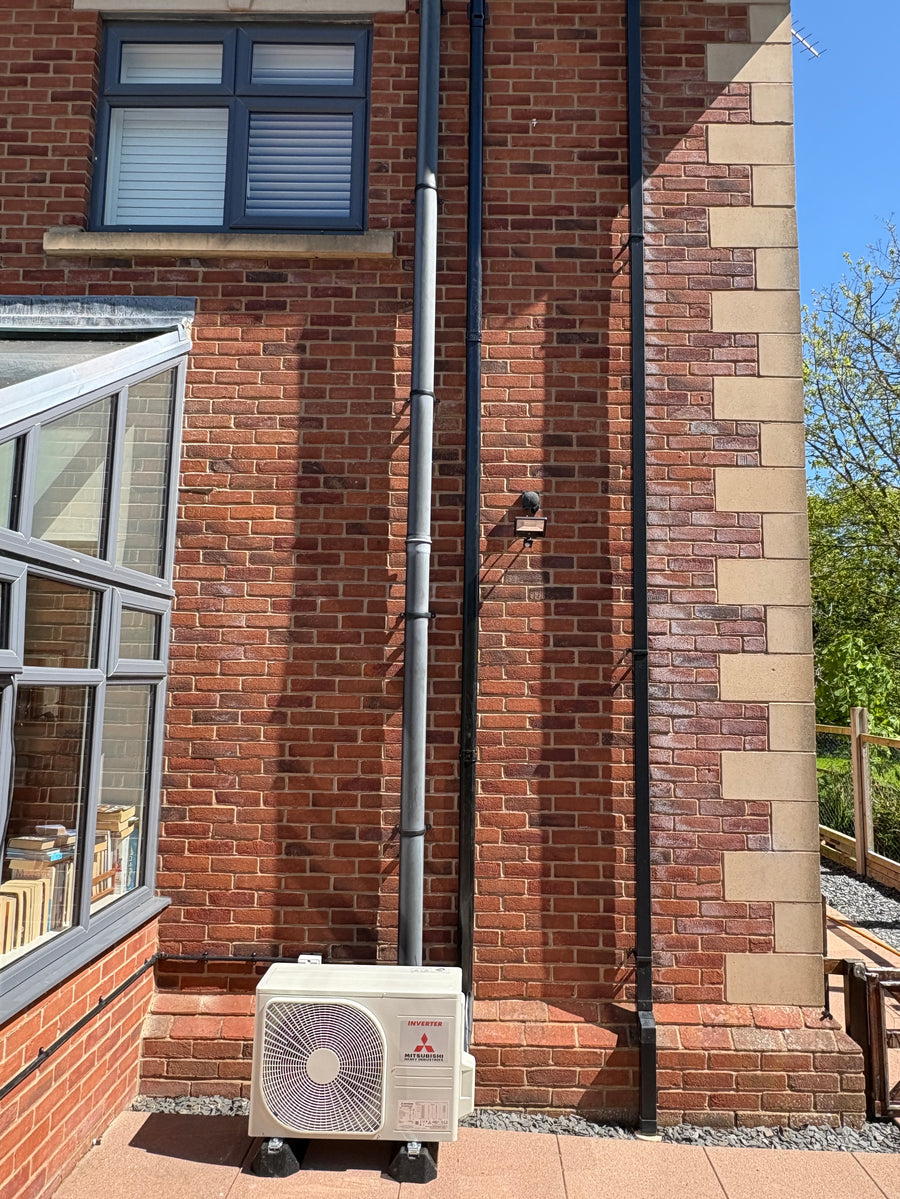

Get a clear installation price online
Looking for Mitsubishi Heavy Industries air conditioning for your home, office, garden room, shop or salon? Start with an instant online quote and see a straightforward installed price before you book.
Mitsubishi Heavy Industries Wi-Fi setup questions
Which app do I need for Mitsubishi Heavy Industries air conditioning?
You normally need the Smart M-Air app. Mitsubishi Heavy Industries and Mitsubishi Electric are different brands, so avoid downloading MELCloud unless you have a Mitsubishi Electric system.
What is AP mode?
AP mode is a temporary setup mode where the air conditioning unit creates its own Wi-Fi network, usually shown as Smart-M-Air-XXXX. Your phone connects to this temporarily so the app can send your home Wi-Fi details to the unit.
Does Smart M-Air work on 5GHz Wi-Fi?
Smart M-Air connection normally requires a 2.4GHz Wi-Fi network. If your router only offers 5GHz, or if the 2.4GHz band is hidden, you may need to adjust your router settings.
Can I still use the normal remote control?
Yes. Wi-Fi app control is an extra convenience. The handheld remote can still be used for normal heating, cooling, fan speed and temperature control.
Why will my AC not appear in the Smart M-Air app?
Check that the indoor unit is in Wi-Fi registration mode, your phone is close to the system, app permissions are allowed and your phone has not disconnected from the temporary Smart-M-Air network.
What if I change broadband router?
You will usually need to repeat the Wi-Fi setup process so the air conditioning unit can connect to the new router name and password.
Can I connect more than one indoor unit?
Yes, where each compatible indoor unit has Wi-Fi available, you can usually register multiple systems in the app and give them separate room names.
More air conditioning guides
These guides are useful if you are planning an installation or want to look after your system once it has been fitted.
Speak to Discount Air Conditioning
If you have recently had a system installed by us and are struggling to connect Smart M-Air, please contact us with your name, installation address and a short note explaining which step you are stuck on.